需求 最近项目中需要用到日历控件,需求如下
同时支持周模式和月模式
支持边界设置,有些地方要求只显示当前周和下一周
支持日期禁用,某些特定的日期不允许点击
支持自定义的选中日期的样式
左右滑动自动切换周、月,同时自动选中同等位置的日期。
找来找去,最后发现GitHub的material-calendarview 这个项目最贴近以上需求,稍作修改就能用了。
material-calendarview 项目开源地址:
https://github.com/prolificinteractive/material-calendarview
集成清单
添加compile 'com.prolificinteractive:material-calendarview:1.4.3'
添加日历控件到布局中
1 2 3 4 5 6 7 <com.prolificinteractive.materialcalendarview.MaterialCalendarView xmlns:app ="http://schemas.android.com/apk/res-auto" android:id ="@+id/calendarView" android:layout_width ="match_parent" android:layout_height ="wrap_content" app:mcv_showOtherDates ="all" app:mcv_selectionColor ="#00F" />
功能展示 material-calendarview项目提供9个Sample来展示其功能用法
一、对照组:OldCalendarViewActivity 1 2 3 4 <CalendarView android:id ="@+id/calendarView" android:layout_width ="match_parent" android:layout_height ="300dp" />
采用系统控件CalendarView,实现一个点击显示日期的功能,可惜在低版本Android手机上没有material的样式,颜值很低,不能用。
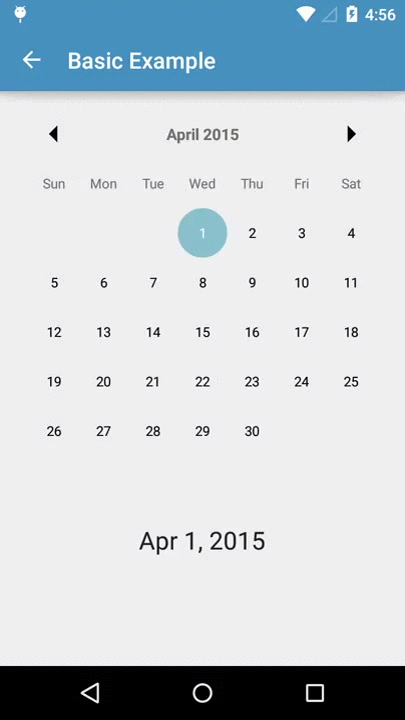
二、基本用法:BasicActivity
绑定控件
1 2 @Bind (R.id.calendarView)MaterialCalendarView widget;
OnDateSelectedListener:用来监听选中日期的变化,
1 2 3 4 5 6 7 8 9 10 11 12 13 14 15 public interface OnDateSelectedListener void onDateSelected (@NonNull MaterialCalendarView widget, @NonNull CalendarDay date, boolean selected) }
OnMonthChangedListener:用来接听页面滑动的变化,这个有点名不副实,因为在周模式的时候,滑动页面是按周来变化的。
1 2 3 4 5 6 7 8 9 10 11 12 13 public interface OnMonthChangedListener void onMonthChanged (MaterialCalendarView widget, CalendarDay date) }
getSelectedDate():获取被选中的日期。
1 2 3 4 5 6 7 private String getSelectedDatesString () CalendarDay date = widget.getSelectedDate(); if (date == null ) { return "No Selection" ; } return FORMATTER.format(date.getDate()); }
三、修饰选中日期:BasicActivityDecorated
设置日期范围
1 2 3 4 5 6 7 8 9 10 11 widget.setShowOtherDates(MaterialCalendarView.SHOW_ALL); Calendar instance = Calendar.getInstance(); widget.setSelectedDate(instance.getTime()); Calendar instance1 = Calendar.getInstance(); instance1.set(instance1.get(Calendar.YEAR), Calendar.JANUARY, 1 ); Calendar instance2 = Calendar.getInstance(); instance2.set(instance2.get(Calendar.YEAR), Calendar.DECEMBER, 31 ); widget.state().edit() .setMinimumDate(instance1.getTime()) .setMaximumDate(instance2.getTime()) .commit();
增加日期修饰
1 2 3 4 5 widget.addDecorators( new MySelectorDecorator(this ), new HighlightWeekendsDecorator(), oneDayDecorator );
案例提供了三种修饰:
对选中日期增加指定背景图层
1 2 3 4 5 6 7 8 9 10 11 12 13 14 15 16 17 18 public class MySelectorDecorator implements DayViewDecorator private final Drawable drawable; public MySelectorDecorator (Activity context) drawable = context.getResources().getDrawable(R.drawable.my_selector); } @Override public boolean shouldDecorate (CalendarDay day) return true ; } @Override public void decorate (DayViewFacade view) view.setSelectionDrawable(drawable); } }
对周末增加指定背景图层
1 2 3 4 5 6 7 8 9 10 11 12 13 14 15 16 17 18 19 20 21 22 23 24 25 public class HighlightWeekendsDecorator implements DayViewDecorator private final Calendar calendar = Calendar.getInstance(); private final Drawable highlightDrawable; private static final int color = Color.parseColor("#228BC34A" ); public HighlightWeekendsDecorator () highlightDrawable = new ColorDrawable(color); } @Override public boolean shouldDecorate (CalendarDay day) day.copyTo(calendar); int weekDay = calendar.get(Calendar.DAY_OF_WEEK); return weekDay == Calendar.SATURDAY || weekDay == Calendar.SUNDAY; } @Override public void decorate (DayViewFacade view) view.setBackgroundDrawable(highlightDrawable); } }
对选中日期增加指定修饰
1 2 3 4 5 6 7 8 9 10 11 12 13 14 15 16 17 18 19 20 21 22 23 24 25 26 27 28 29 public class OneDayDecorator implements DayViewDecorator private CalendarDay date; public OneDayDecorator () date = CalendarDay.today(); } @Override public boolean shouldDecorate (CalendarDay day) return date != null && day.equals(date); } @Override public void decorate (DayViewFacade view) view.addSpan(new StyleSpan(Typeface.BOLD)); view.addSpan(new RelativeSizeSpan(3.0f )); } public void setDate (Date date) this .date = CalendarDay.from(date); } }
对特定日期增加红点修饰
1 2 3 4 5 6 7 8 9 10 11 12 13 14 15 16 17 18 19 20 21 22 23 public class EventDecorator implements DayViewDecorator private int color; private HashSet<CalendarDay> dates; public EventDecorator (int color, Collection<CalendarDay> dates) this .color = color; this .dates = new HashSet<>(dates); } @Override public boolean shouldDecorate (CalendarDay day) return dates.contains(day); } @Override public void decorate (DayViewFacade view) view.addSpan(new DotSpan(5 , color)); } }
四、模式切换:SwappableBasicActivityDecorated 切换周模式、月模式
1 2 3 4 5 6 7 8 9 10 11 12 13 @OnClick (R.id.button_weeks)public void onSetWeekMode () widget.state().edit() .setCalendarDisplayMode(CalendarMode.WEEKS) .commit(); } @OnClick (R.id.button_months)public void onSetMonthMode () widget.state().edit() .setCalendarDisplayMode(CalendarMode.MONTHS) .commit(); }
五、日期禁用:DisableDaysActivity 核心代码是:
1 2 DayViewFacade view view.setDaysDisabled(true );
这个作者非常喜欢用装饰模式。所以对DayViewFacade的修饰可以无穷的累加。只要集成DayViewDecorator就可以。
1 2 3 4 5 6 7 8 9 10 11 12 13 14 15 16 17 18 19 20 21 public interface DayViewDecorator boolean shouldDecorate (CalendarDay day) void decorate (DayViewFacade view) }
六、透过xml自定义控件:CustomizeXmlActivity 1 2 3 4 5 6 7 8 9 10 11 12 13 14 15 16 17 <com.prolificinteractive.materialcalendarview.MaterialCalendarView android:id ="@+id/calendarView" android:layout_width ="match_parent" android:layout_height ="wrap_content" app:mcv_showOtherDates ="all" app:mcv_arrowColor ="?attr/colorPrimary" app:mcv_leftArrowMask ="@drawable/ic_navigation_arrow_back" app:mcv_rightArrowMask ="@drawable/ic_navigation_arrow_forward" app:mcv_selectionColor ="?attr/colorPrimary" app:mcv_headerTextAppearance ="?android:attr/textAppearanceMedium" app:mcv_dateTextAppearance ="@style/CustomDayTextAppearance" app:mcv_weekDayTextAppearance ="?android:attr/textAppearanceMedium" app:mcv_weekDayLabels ="@array/custom_weekdays" app:mcv_monthLabels ="@array/custom_months" app:mcv_tileSize ="36dp" app:mcv_firstDayOfWeek ="thursday" app:mcv_calendarMode ="week" />
xml中能设置的属性很多,常用的如下:
mcv_showOtherDates:日期范围
mcv_firstDayOfWeek:一周的第一天
mcv_calendarMode:日历模式
七、透过java自定义控件:CustomizeCodeActivity 效果和xml是一致的。
1 2 3 4 5 6 7 8 9 10 11 12 13 14 15 16 17 18 19 20 21 22 widget.setShowOtherDates(MaterialCalendarView.SHOW_ALL); widget.setArrowColor(getResources().getColor(R.color.sample_primary)); widget.setLeftArrowMask(getResources().getDrawable(R.drawable.ic_navigation_arrow_back)); widget.setRightArrowMask(getResources().getDrawable(R.drawable.ic_navigation_arrow_forward)); widget.setSelectionColor(getResources().getColor(R.color.sample_primary)); widget.setHeaderTextAppearance(R.style.TextAppearance_AppCompat_Medium); widget.setWeekDayTextAppearance(R.style.TextAppearance_AppCompat_Medium); widget.setDateTextAppearance(R.style.CustomDayTextAppearance); widget.setTitleFormatter(new MonthArrayTitleFormatter(getResources().getTextArray(R.array.custom_months))); widget.setWeekDayFormatter(new ArrayWeekDayFormatter(getResources().getTextArray(R.array.custom_weekdays))); widget.setTileSize((int ) TypedValue.applyDimension(TypedValue.COMPLEX_UNIT_DIP, 36 , getResources().getDisplayMetrics())); CalendarDay today = CalendarDay.from(2016 , 5 , 2 ); widget.setCurrentDate(today); widget.setSelectedDate(today); widget.state().edit() .setFirstDayOfWeek(Calendar.WEDNESDAY) .setMinimumDate(CalendarDay.from(2016 , 4 , 3 )) .setMaximumDate(CalendarDay.from(2016 , 5 , 12 )) .setCalendarDisplayMode(CalendarMode.WEEKS) .commit();
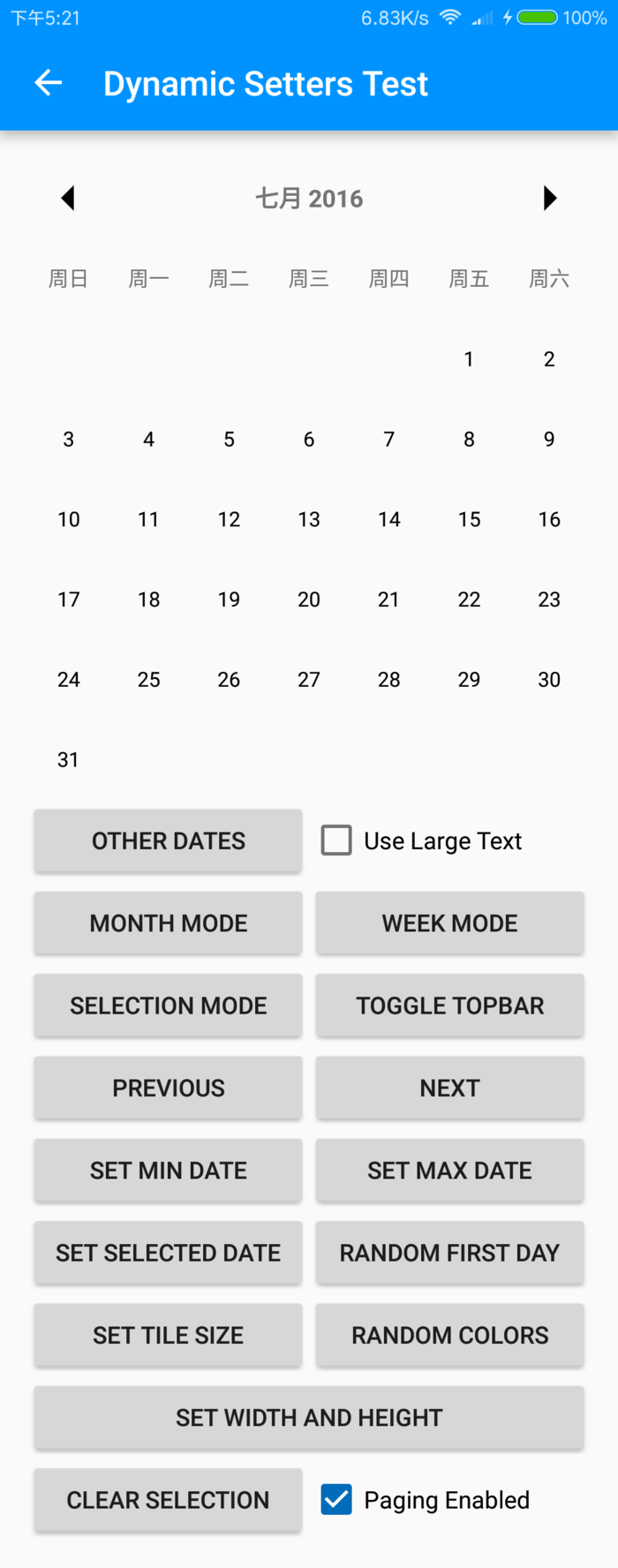
八、完整的设置展示DynamicSettersActivity
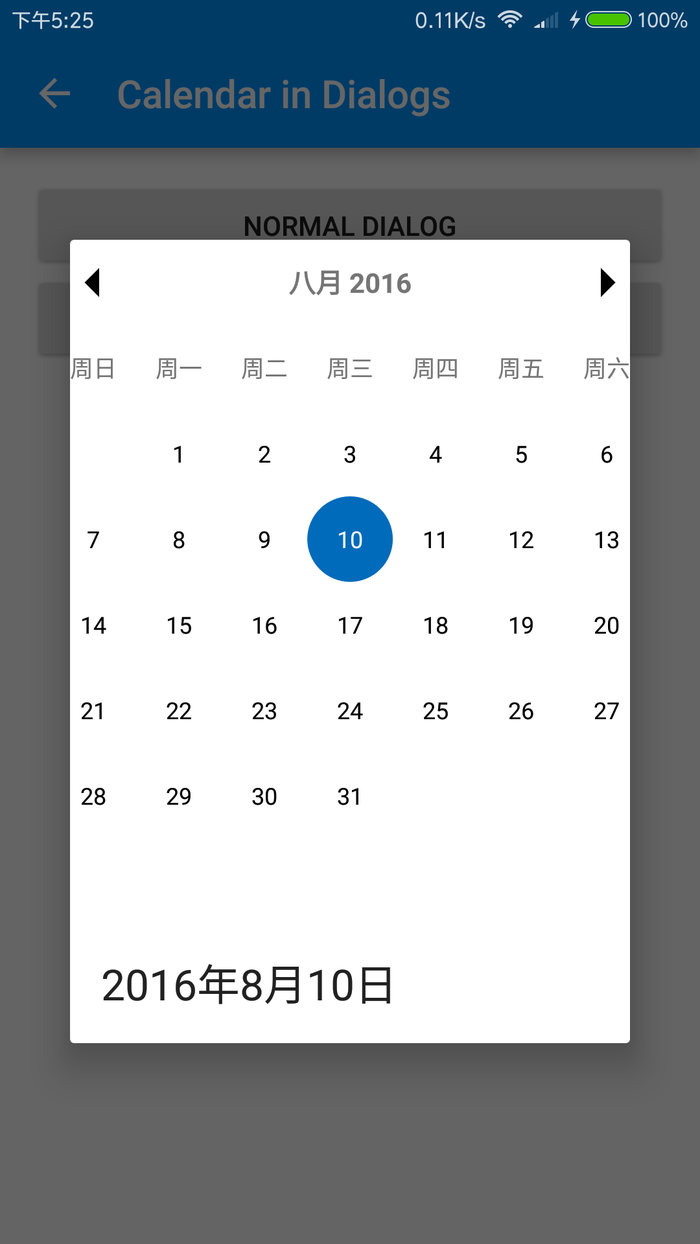
九、在Dialog中显示日历:DialogsActivity
拓展:滑屏时自动选中日期 1 2 3 4 5 6 7 8 9 10 11 12 13 14 15 16 17 18 19 20 21 22 23 24 25 26 27 28 29 30 31 32 33 widget.setOnDateChangedListener(new OnDateSelectedListener() { @Override public void onDateSelected (@NonNull MaterialCalendarView widget, @NonNull CalendarDay date, boolean selected) if (selected && date != null ){ dayOfWeek = date.getCalendar().get(Calendar.DAY_OF_WEEK); dayofMonth = date.getCalendar().get(Calendar.DAY_OF_MONTH); } Log.d(TAG, "date = " + date); Log.d(TAG, "dayOfWeek = " + dayOfWeek); Log.d(TAG, "dayofMonth = " + dayofMonth); } }); widget.setOnMonthChangedListener(new OnMonthChangedListener() { @Override public void onMonthChanged (final MaterialCalendarView widget, CalendarDay date) Calendar c = date.getCalendar(); Log.d(TAG, "date = " + date); Calendar now = c; if (widget.state().calendarMode == CalendarMode.WEEKS){ now.set(Calendar.DAY_OF_WEEK, c.get(Calendar.DAY_OF_WEEK) + dayOfWeek - 1 ); } else { now.set(Calendar.DAY_OF_MONTH, c.get(Calendar.DAY_OF_MONTH) + dayofMonth - 1 ); } CalendarDay nowDate = CalendarDay.from(now); Log.d(TAG, "nowDate = " + nowDate); widget.setSelectedDate(nowDate); } }); Calendar instance = Calendar.getInstance(); widget.setSelectedDate(instance.getTime());
原文链接